
The Self-service Password Reset (SSPR) portal gives users the ability to change or reset their password, with no administrator or help desk involvement.
Intended Audience
This article is for anyone who needs to reset their password for their Colonial Williamsburg Computer Account. This account is used for logging in to the computer, all Microsoft products and many of our applications such as our HR, Finance and other systems that allow SSO (Single Sign On)
- Passwords must be a minimum of 16 characters long.
- Passwords must contain:
- 1 Upper Case Letter
- 1 Lower Case Letter
- 1 Number
- 1 Special Character
- Passwords can not be changed by yourself more than once in a 24 hour period. If you require another password change within this timeframe, please reach out to the Help Desk during business hours at x7300 (757-220-7300) or have your manager submit a ticket online at https://itsupport.cwf.org
- Avoid reusing any password you have already used in the past.
- Your password will expire every 180 days (6 months).
- To make your password hard to guess, we have made so some words cannot be used in passwords. For instance, “password”, “colonial”, “williamsburg” and “foundation” are words that are blocked from being used. Other combinations blocked include (but not limited to) repeating letters or characters, and other such things that are commonly used in simple passwords.
- If you use your account on multiple devices, you may need to update your stored password on those devices. Please review the Tips on Updating Your Password page for identifying and updating those stored passwords.
Resetting Your Password
These steps can be completed from any device that has access to the internet.
OR scan the code below:
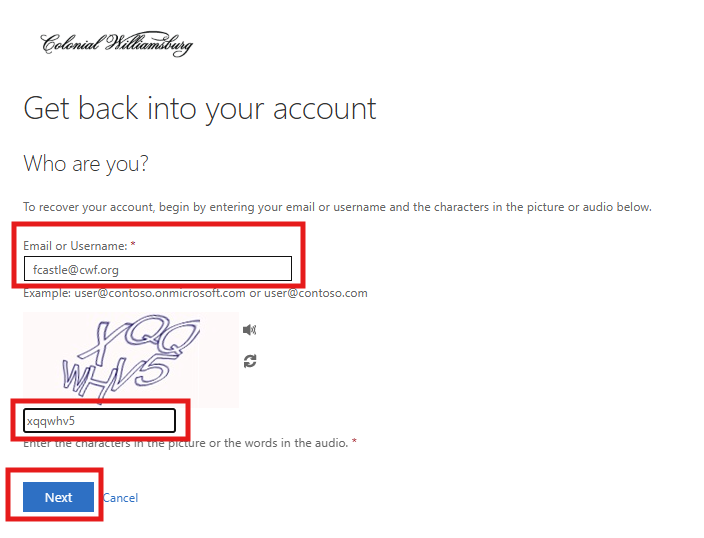
- Enter your full Colonial Williamsburg email address and the CAPTCHA. Press Next.
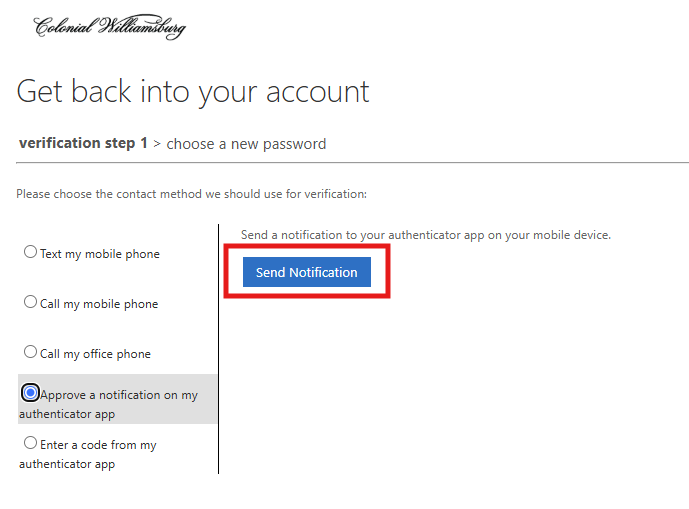
- Depending on what verification options you enrolled with, you will be presented with options to verify yourself.
- The most reliable option when you are connected to the internet is to approve a notification from your authenticator app.
No Cellphone or Wi-Fi?
If you are not able to get reliable cellphone or Wi-Fi service in your area, select "Enter a code from my authenticator app". This allows you to manually enter the code that is generated on your app and requires no internet service.
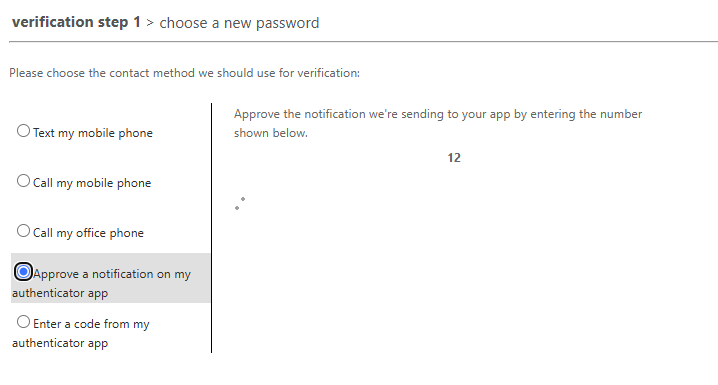
- After receiving the notification, enter the number shown on your screen in to your authenticator app.
- Now you may set up a new password. Remember the requirements above to see
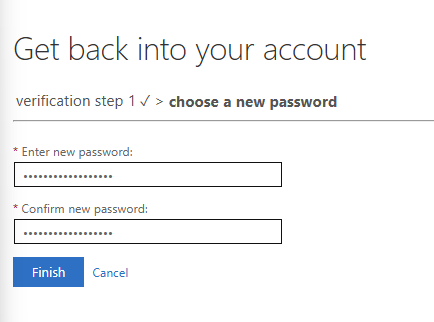
- This Microsoft tool will tell you if you entered something that was not strong enough. If it is not strong enough, you will see messages like these:


- If you have entered a valid new password, you will get a verification message.
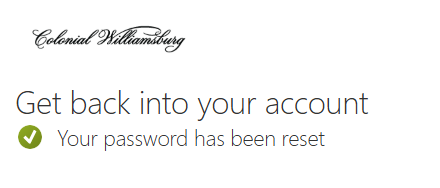
Success! You can now log in to your account utilizing your new password.
Local Lockouts
Be sure to review our Tips: Before & After Updating Your Password guide, to ensure you do not get consistently locked out of your account after a password change.