
Intended Audience
This article is intended for all users with a Computer Account. This is a requirement of the onboarding process to utilize a Colonial Williamsburg issued username/password.
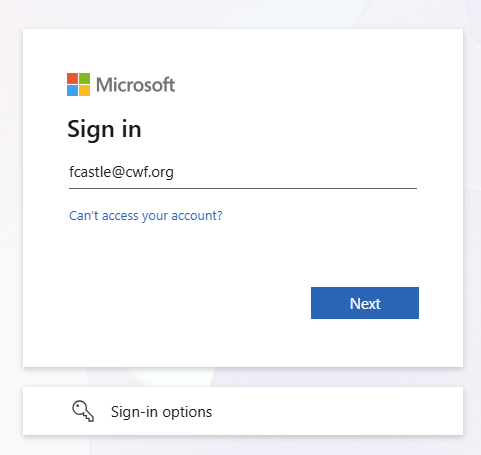
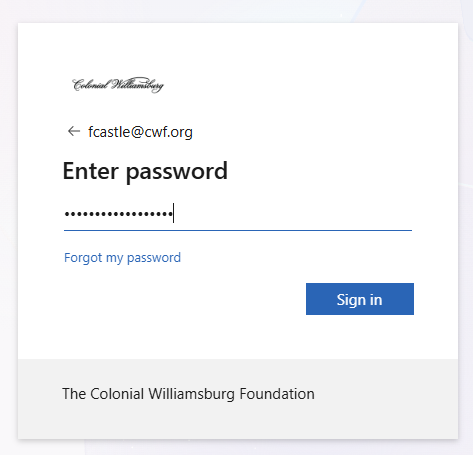
Sign in to https://passwordregistration.cwf.org OR https://aka.ms/ssprsetup utilizing your full email address and password.
- NOTE: Utilize your initial temporary password given to you by your manager
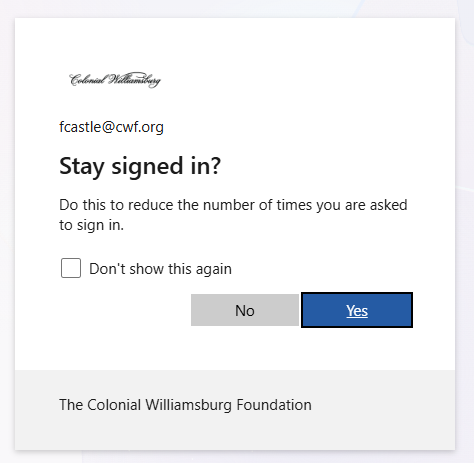
- You will be asked if you want to stay signed in. If you are using a personal device, you may select "Yes", but if you are using a shared device, please select "No".
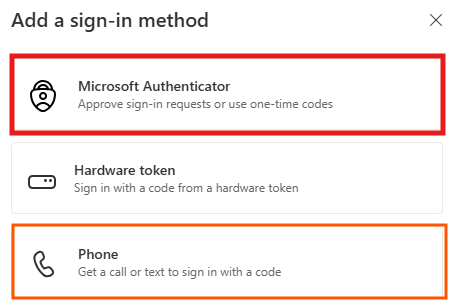
You will be brought to the Security Info screen of your Microsoft Account. Select "Add sign-in method"
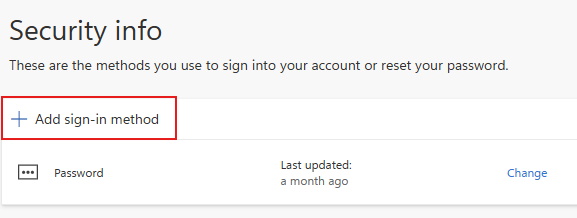
- The two options for Multi-Factor Authentication are the Microsoft Authenticator or a Phone line via calls or SMS (Text)
- The PREFERRED authentication method is to use the free Microsoft Authenticator app.
Authenticator
The Microsoft Authenticator allows you to receive a push notification and has the option of manually inputting a rotating code which can be used while connected to Wi-Fi, Cellular, and OFFLINE.
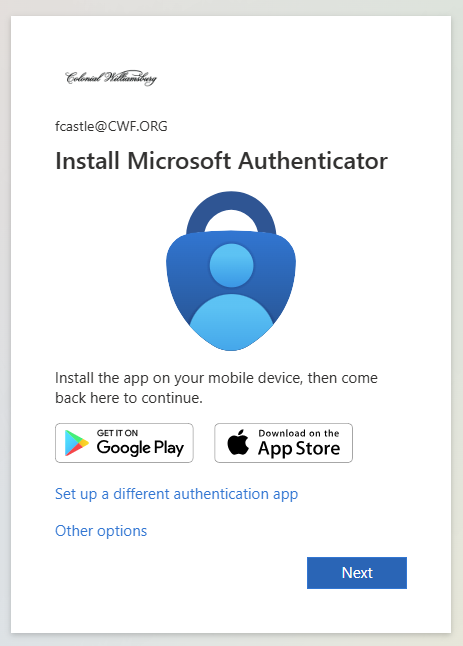
Once you have it installed on your mobile device, select Next and follow the prompts to add this account. If you don't have it installed there is a link provided to download it
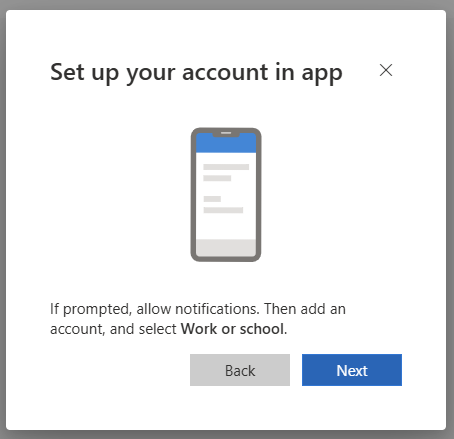
- Follow the prompts provided to select "Work of school account" within the app.
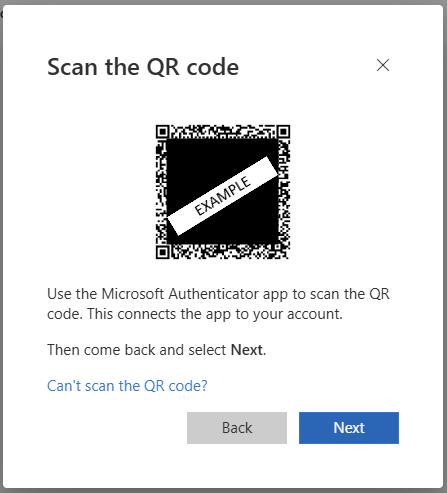
- You will then be prompted to either sign in directly on the app, or you can scan the QR code shown on your screen with your phone (picture below is just an example).
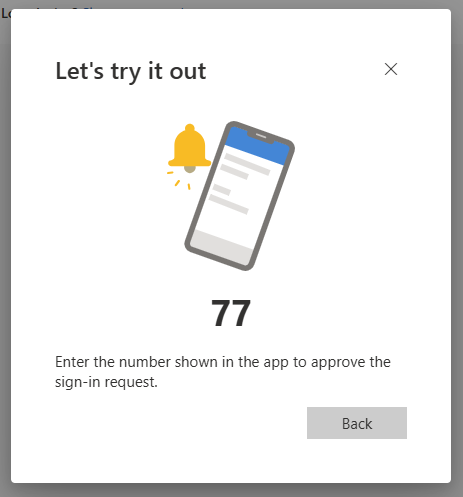
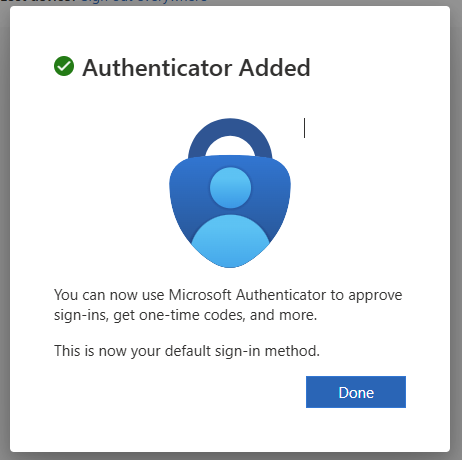
- Once set up, it will then push you a test notification. Input the number shown on the computer screen to your phone and hit "Okay"
- Using MFA is how you will sign in to all Microsoft websites, as well as most Colonial Williamsburg associated applications such as our HR, Finance, and other applications that support SSO (Single Sign On)
- You must also use an MFA method to reset your password at https://passwordreset.cwf.org
- You can always come back to https://passwordregistration.cwf.org to update your MFA methods, specifically when you get a new phone or phone number.