
The purpose for this document is to help you connect to the Secure Client VPN. CWF laptops should already have Secure Client installed. If you have not set up multi-factor authentication, or need to install Secure Client on a non-CWF computer, please refer to the "How to install and use Secure Client VPN" found in the menu to the left.
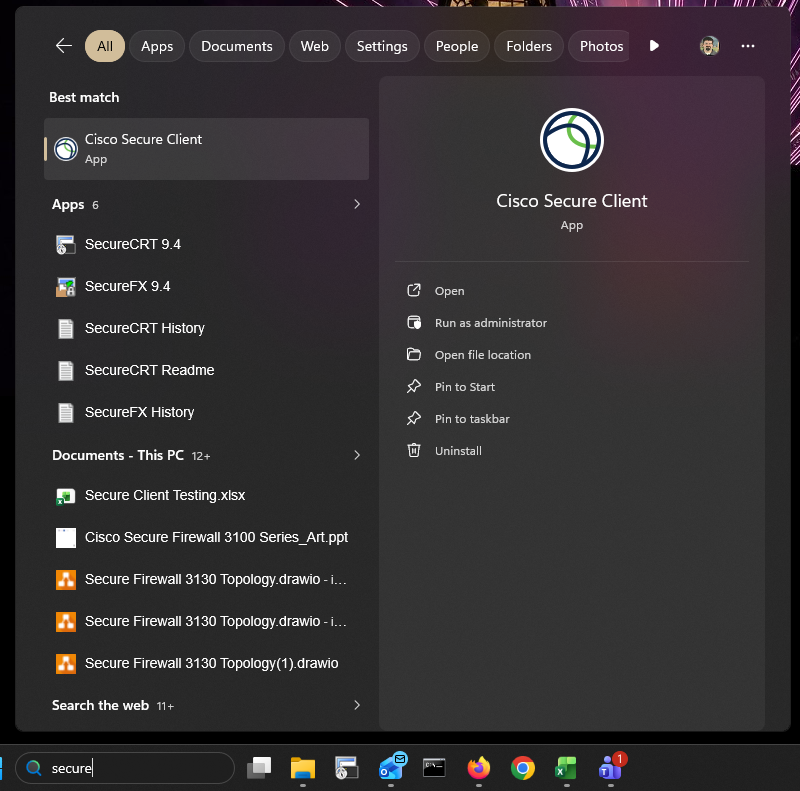
- Find and open the Cisco Secure Client application on your computer.
- If using a Windows computer, click Start and type Cisco Secure Client in the search bar.
- If using a Mac, the easiest way to find Cisco Secure Client is with the magnifying glass search at the top right of the screen.
This will help you locate Cisco Secure Client. Click it to open the application.
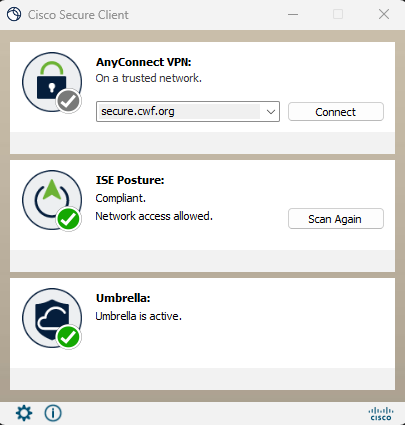
2. In the “Connection” field, find "secure.cwf.org" in the drop-down list or type "secure.cwf.org" if not found and click the Connect button.
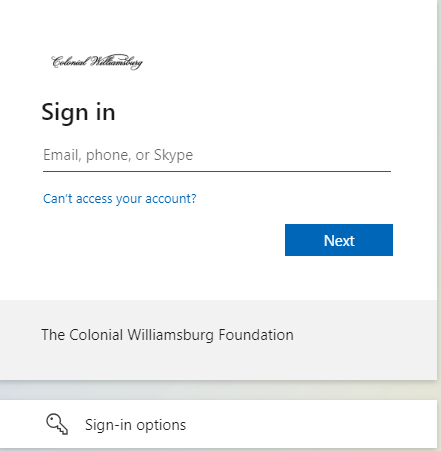
3. At the next login prompt, select “CWF VPN” from the drop-down, then type your email address.
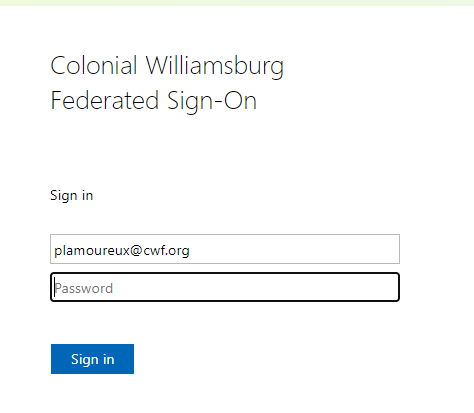
4. You will then be prompted to put in your Microsoft Account password
5. You will then be prompted to authenticate with a chosen multi-factor authentication method
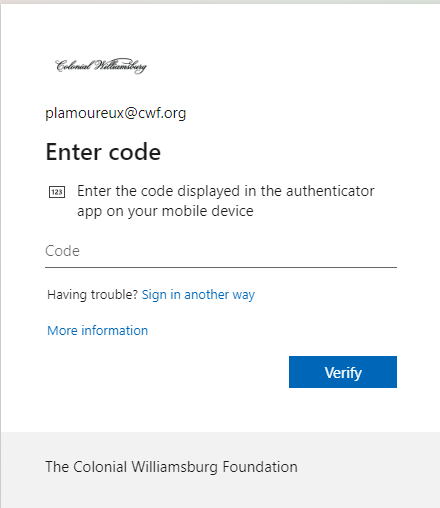
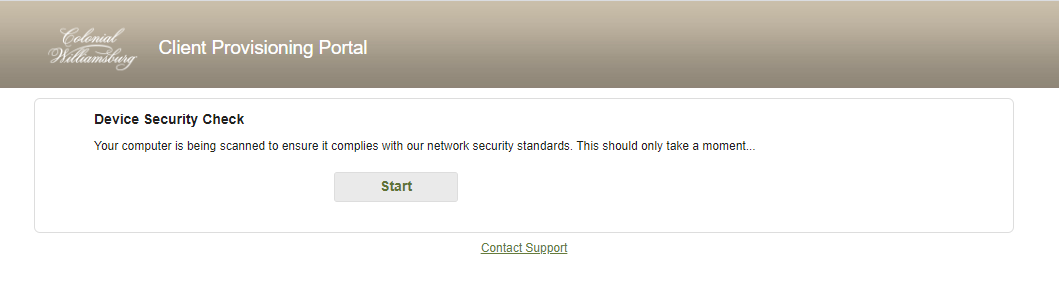
6. Once connected, the Secure Client may bring you to a website where you must click a Start button to verify you have Anti-Virus and other requirements installed. If your PC or Mac does not meet the minimum-security requirements, you will be denied access.
 '
'
7. Once the scan is complete you will see the screen change to the below. You are now VPN'd into the CW network.

Related articles
Content by label
There is no content with the specified labels