
The purpose of this document is to help you set up multi-factor authentication to use Cisco AnyConnect Secure Client in order to VPN. These two applications (MFA and AnyConnectSecure Client) work together to allow you to connect to the CWF computer network through a Virtual Private Network (VPN) while at home or traveling. You can also use the Microsoft Authenticator when logging into other Microsoft applications and partner applications that use your CWF account for Single Sign On (SSO.)
MFA is a multi-factor authentication application. It will be used to verify your credentials while you connect to the CWF_VPN network. MFA will consist of "something you know" (password) and "something you have" (your phone app).
AnyConnect Cisco Secure Client is the application used to connect to the VPN. It will require MFA before it will connect you. Cisco AnyConnect Secure Client is installed on CWF laptops before they are issued.
...
You will find the Microsoft Authenticator in your App Store or Google Play Store.
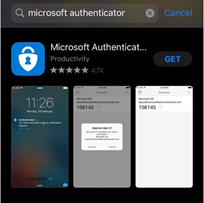
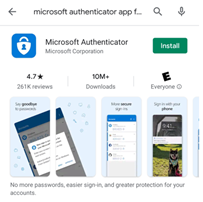
2. Install the app on your phone and click Open. If you receive a request for the Authenticator to send you notifications, please click Allow.
...
- Open a web browser on your computer and log into Office.com.
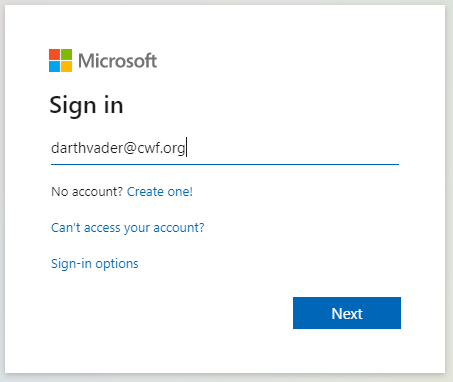
- This screen will popup asking for your email address. Type your CWF email and click Next.
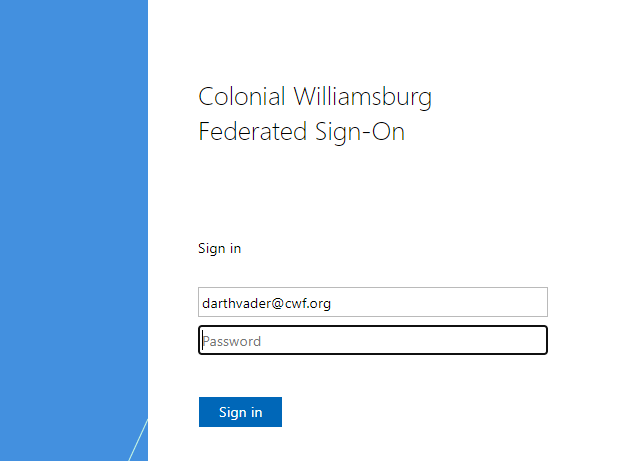
3. The Colonial Williamsburg Federated Sing-On screen will look like this. Ensure your username is correct, type your CWF password and click Sign in.
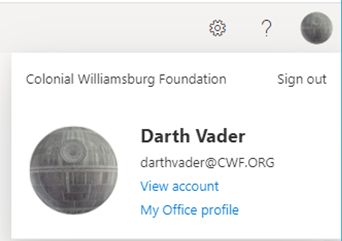
4. When your account comes up, look for the picture (or your initials) on the top right-hand side of the screen.
...
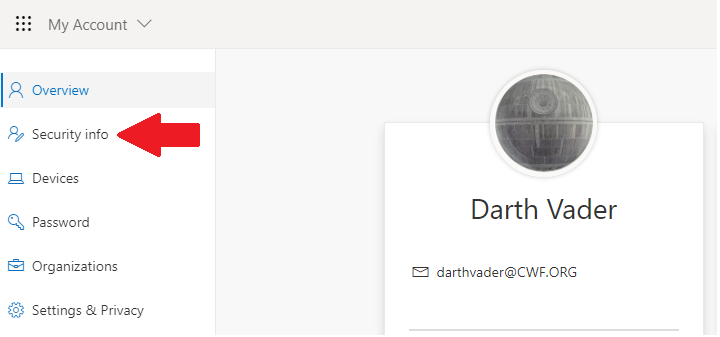
54. Click the the Security Info option on the far left menu.
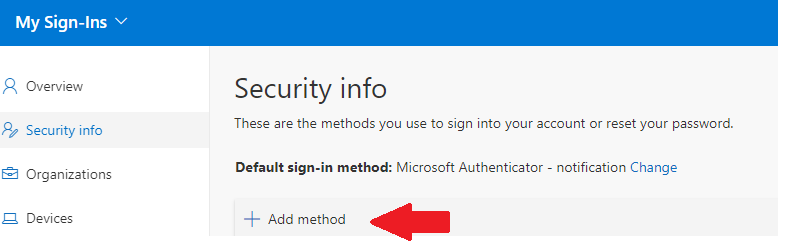
65. Next, you will want to click + Add method.
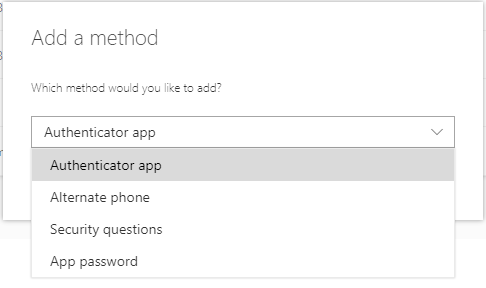
76. The Add a method window pops up. Arrow down to Authenticator app as show below.
87. The Start by getting the app window will pop up. Since you already installed the application on your phone at the beginning of these instructions, you will click Next and grab your phone.
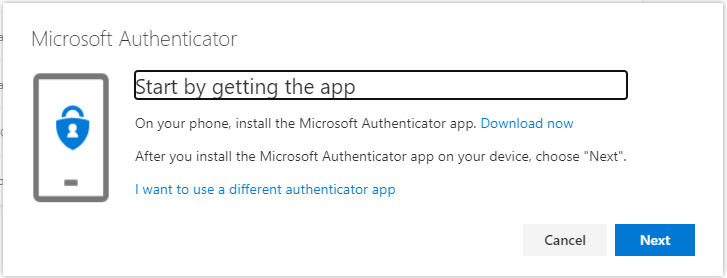
98. The following window will ask you to perform the action on your phone, which you have already completed. Click Next.
109. You will be shown a window with a QR code. Pick up your phone and unlock it. You should be at the point that it want this QR code.
...
Once your phone successfully take the picture, click NEXT.
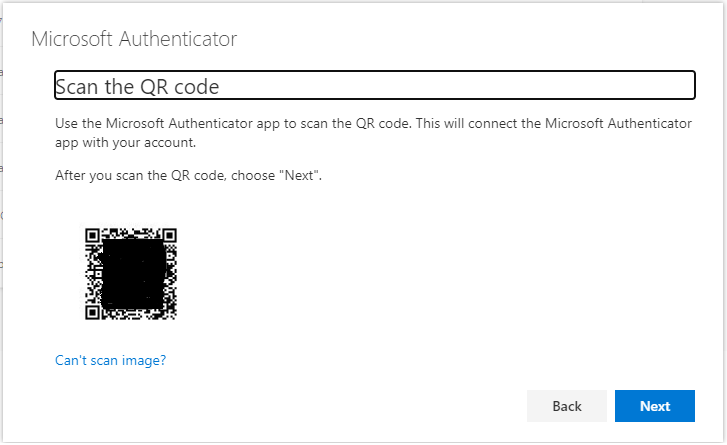
1110. At this time it will be looking for your phone and setting up the authentication. There are a few ways this might happen. Below are a few windows that might appear.
...
You might see this window on your screen. It will change from “Checking activation status” to “Please respond to the notification on your device.”
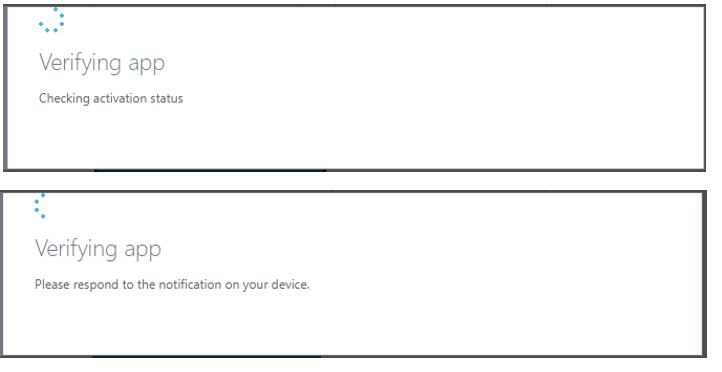
1211. At this time, please look at your phone and you will receive a pop up to Deny or Approve.
...
will not change until you confirm the app on your phone. Click Approve.
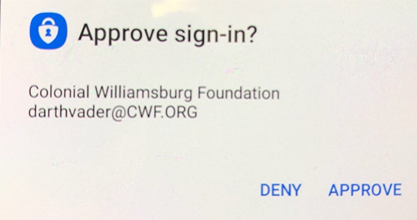
1312. Once you have approved the app on the phone, click Save on the Additional Security verification window.
...
and look at your phone for the push notification to Approve.
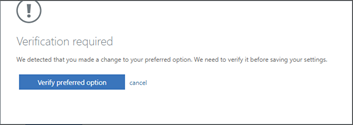
1413. Once that is complete, this Updates successful window will appear. You can close this.
...